


 Attend our in-person Robotics & Math




First things first, let’s talk about the objective of the game. In Minecraft, you are a survivor in a blocky, pixelated world where you must gather resources, build structures, and fight off mobs. Your ultimate goal is to defeat the Ender Dragon and become the land’s ruler. Sounds easy…right? Let’s get right into it!
You can set up Minecraft on various devices like PC, Pocket Edition, and Console as well. Let’s see how.
Part 1- Setting up Minecraft game on Desktop
Setting up Minecraft on your desktop is a straightforward process. Here’s a simple 5-step guide to get you started:
Step 1: Purchase and Install
Purchase and download Minecraft from the official website. Once downloaded, install the game on your desktop. Make sure to make your account and select a cool username!
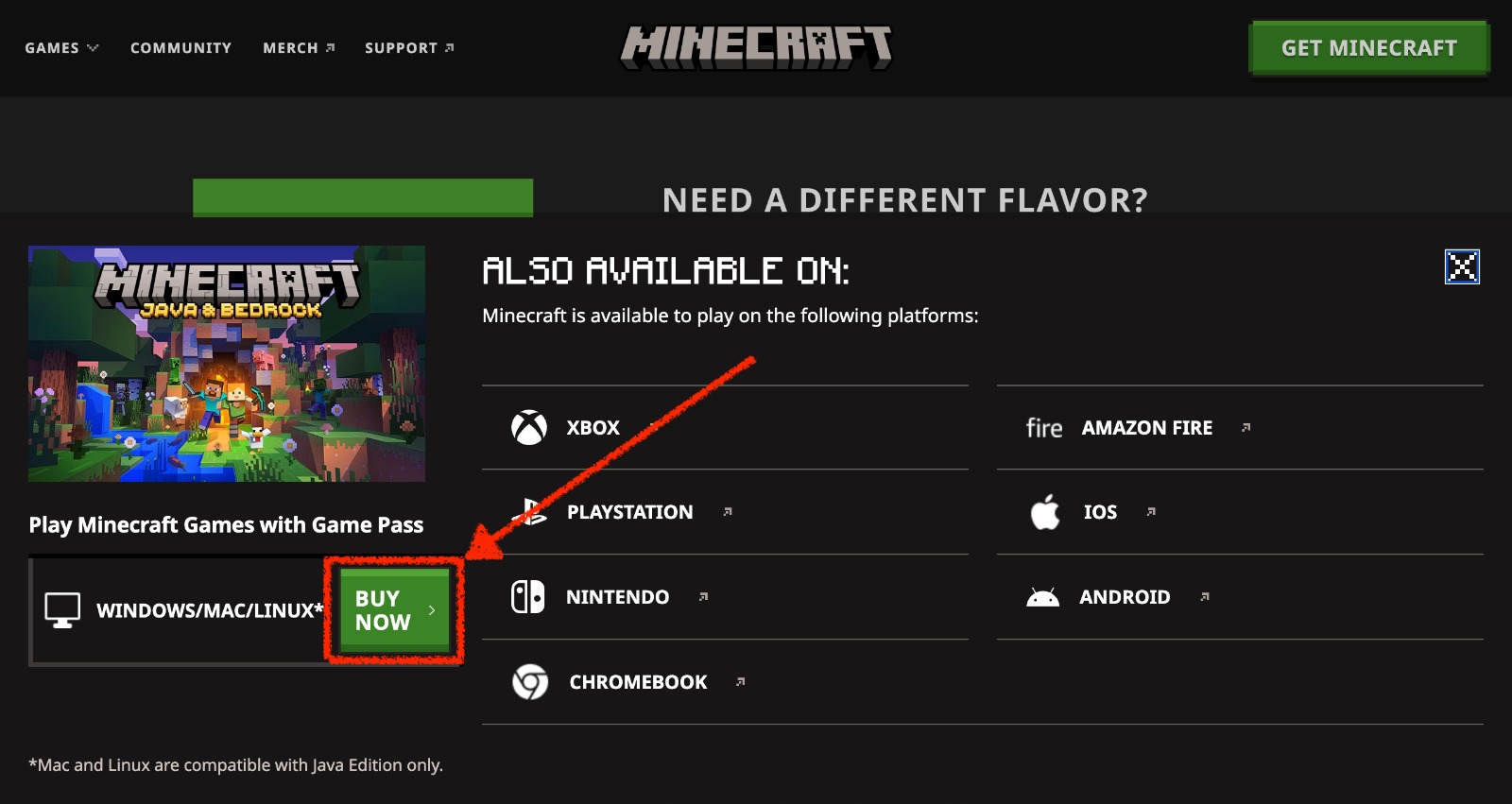
Step 2: Launch the Game
Open the Minecraft launcher and locate the green “PLAY” button. Click on it to launch the game.
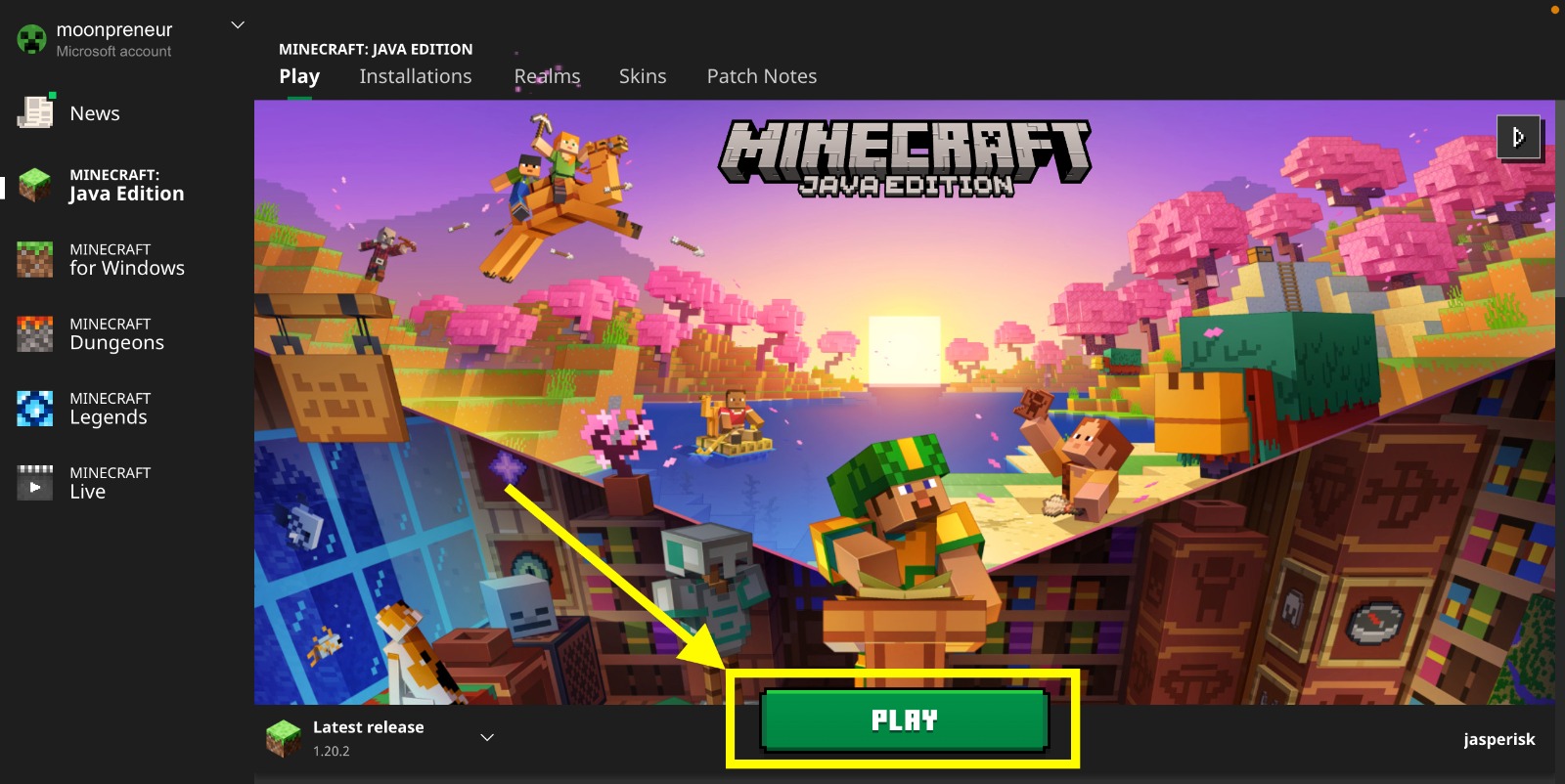
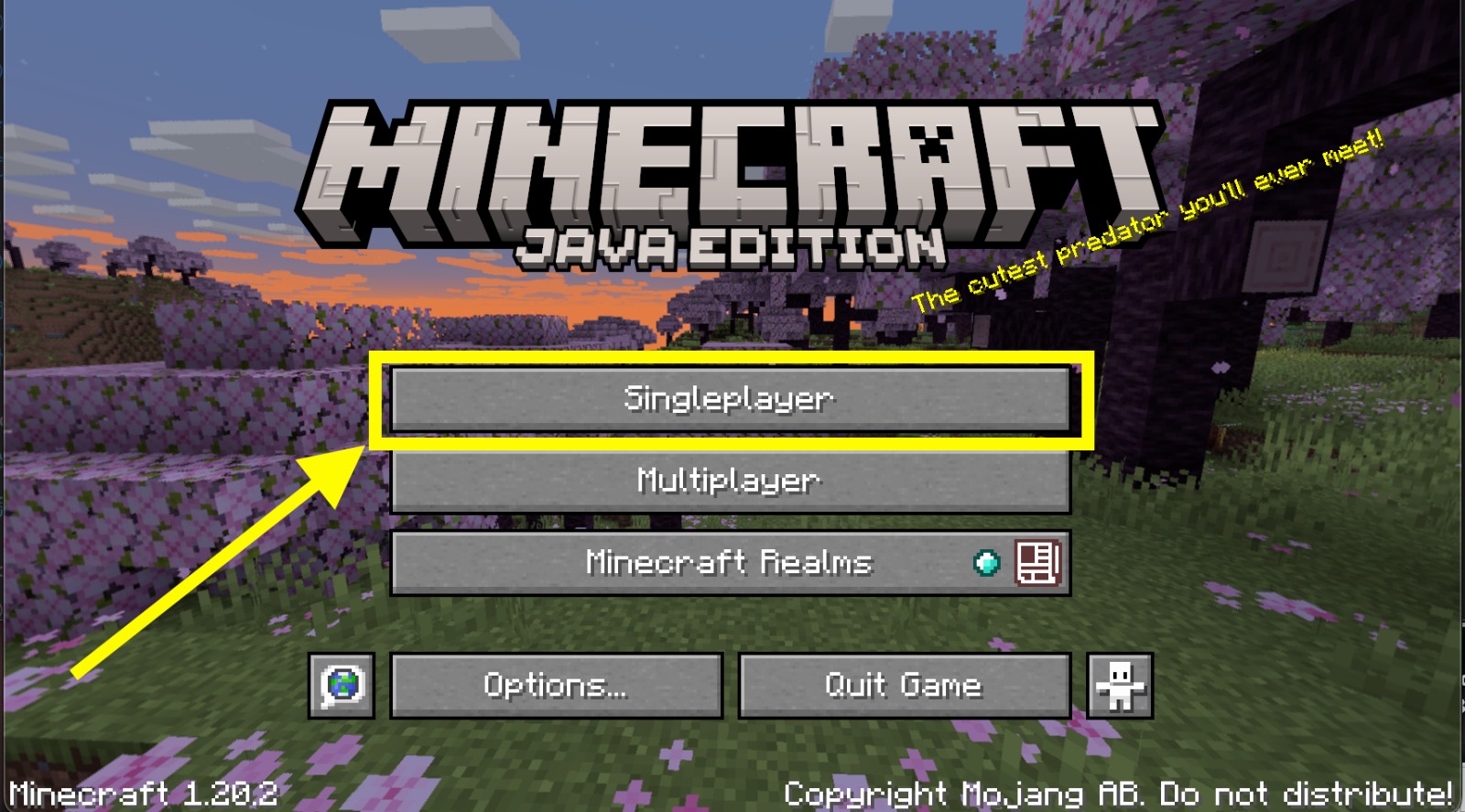
Step 3: Login and Select Singleplayer
Enter your Minecraft login details. After logging in, navigate to the main menu and click on “Singleplayer.”
Step 4: Create a New World
Within the Singleplayer menu, select “Create New World.” Give your world a name and customize settings by clicking on “More World Options…”

Step 5: Confirm and Play
Once you’ve set your preferences, click “Create New World” at the bottom of the window. Confirm your settings, and voila! You’re ready to explore the blocky world, gather resources, and embark on your Minecraft adventure.
Part 2- Setting up Minecraft game on Pocket Edition
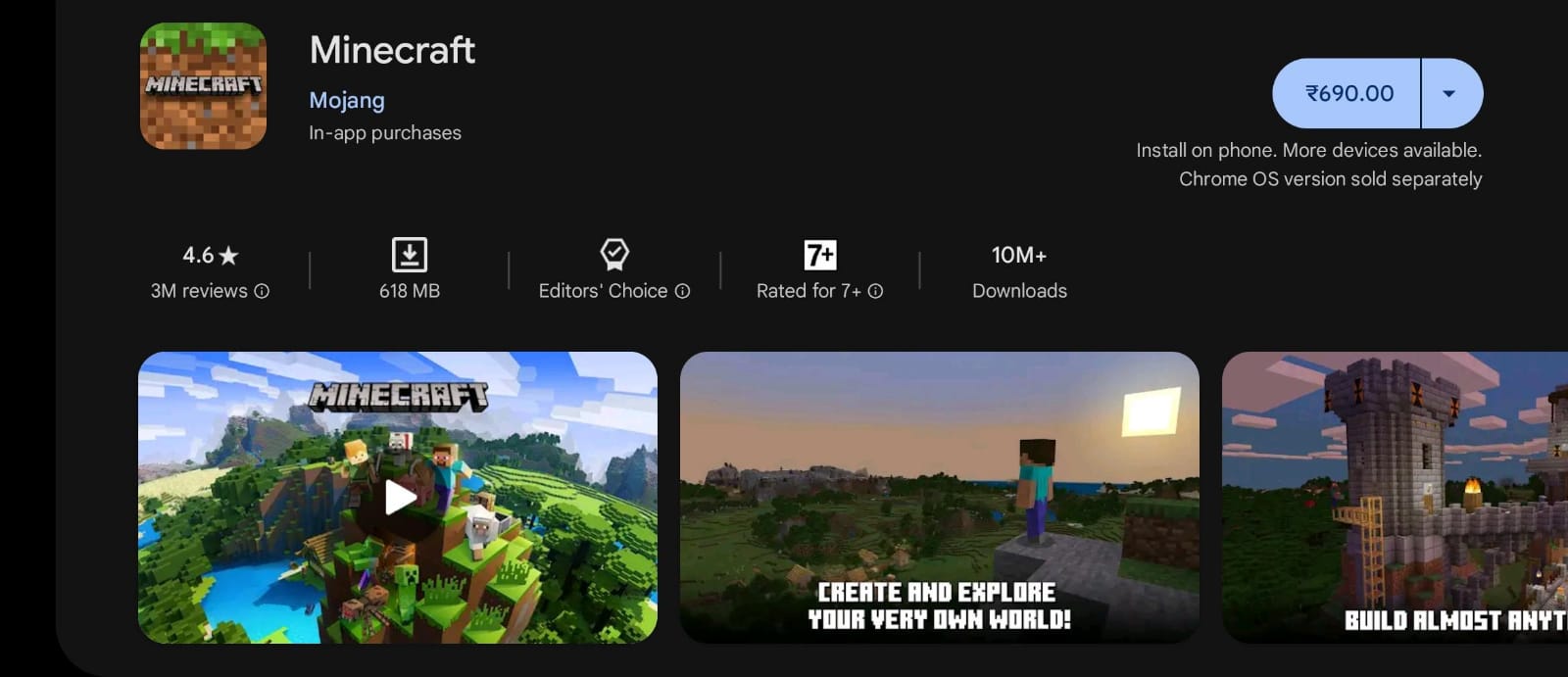
Step 1: Purchase and Install Minecraft
Purchase and install Minecraft from the App Store (iPhone) or Google Play Store (Android) on your mobile device.
Step 2: Launch the Minecraft App
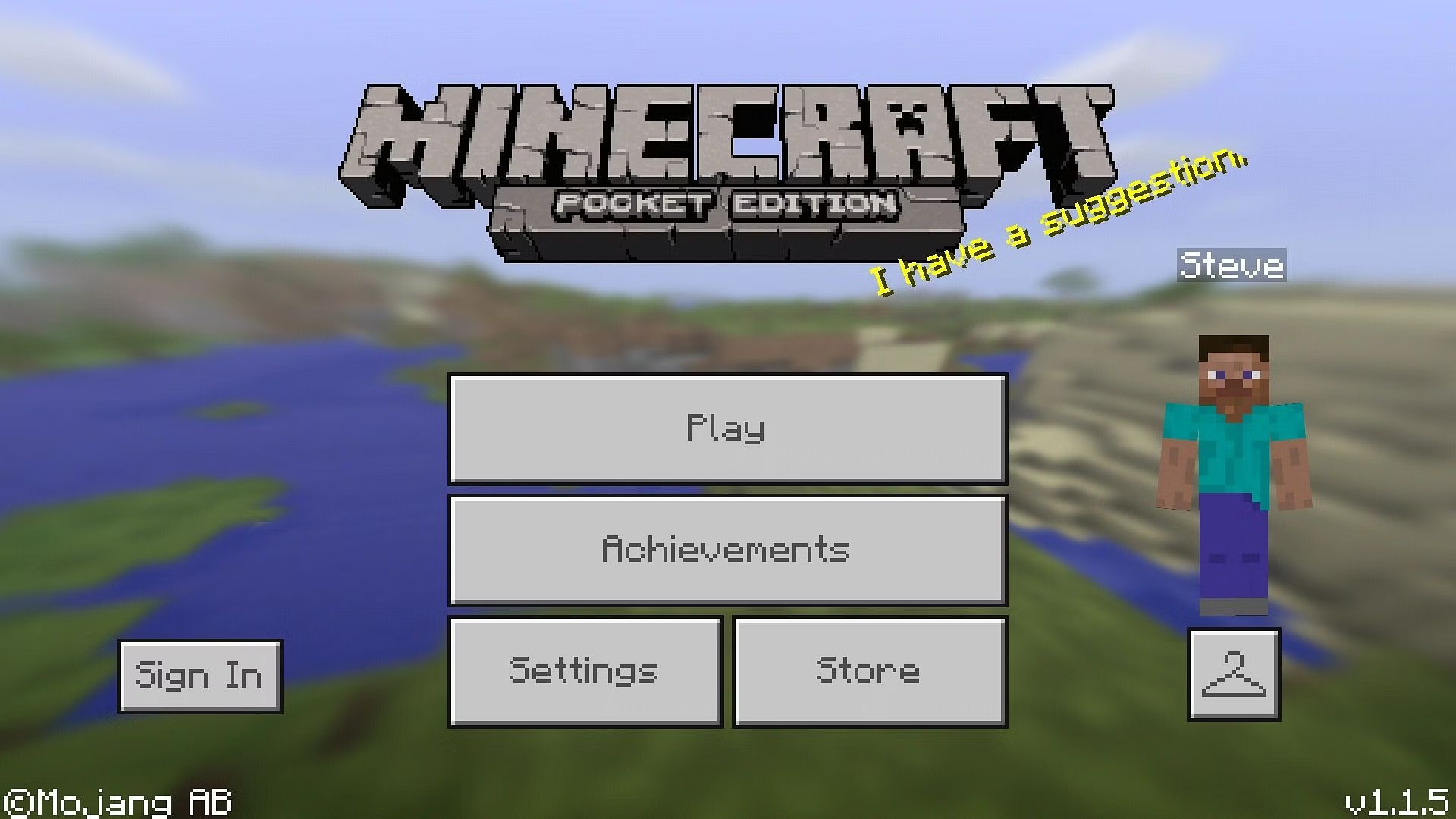
Open the Minecraft app on your device. Tap the “Play” button located at the top of the screen to begin.
Step 3: Create a New World
Within the game, select “Create New” to initiate the world creation process.
Step 4: Customize World Settings
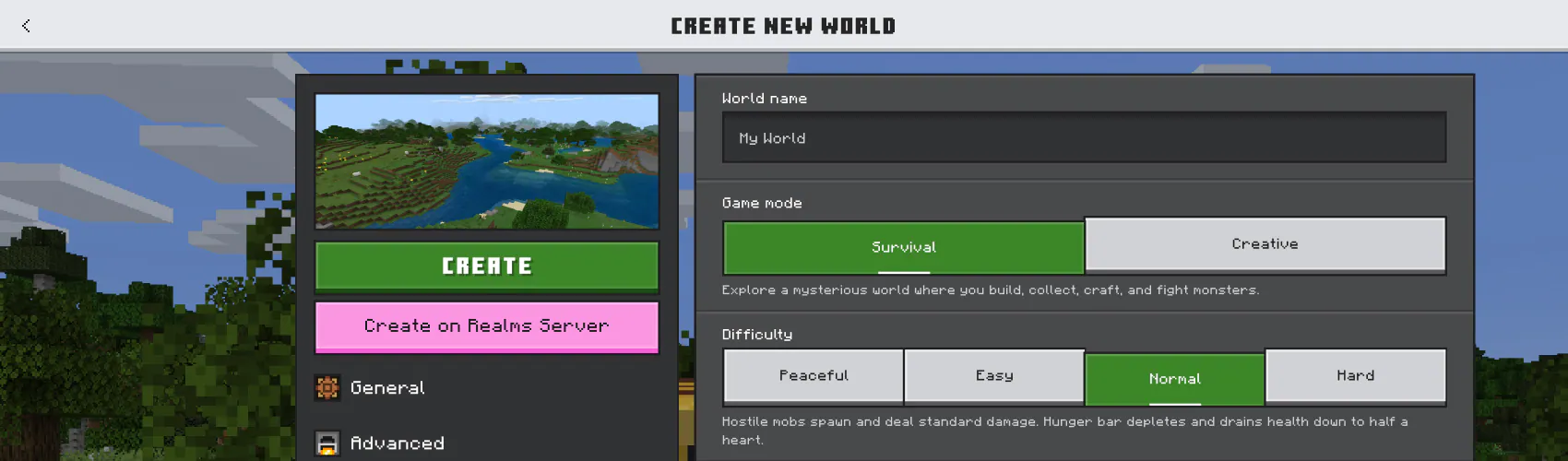
On the world creation page, enter a name for your world, choose a difficulty level, and adjust other game settings according to your preferences.
Step 5: Confirm and Play
Tap the “Create” button on the left side of the screen to confirm your settings and generate your new Minecraft world. Once the world loads, you’re all set to explore and enjoy playing Minecraft on your mobile device.
Part 3- Setting up Minecraft game on the Console
Step 1: Purchase and Install Minecraft
Buy and install Minecraft on your console, whether it’s Xbox One or PlayStation. If you have a physical disc, insert it into the console, or select Minecraft from your list of purchased games.
Step 2: Launch Minecraft
Open the Minecraft application on your console. Choose “Play Game” at the top of the main menu.
Step 3: Navigate to the Create Tab
Within Minecraft, go to the “Create” tab by pressing the right shoulder button on your controller.
Step 4: Create a New World
Select “Create New World.” Enter a name for your world and adjust the difficulty using the slider. If you want to make additional adjustments, select “More Options” to tweak game settings.
Step 5: Confirm and Play
Confirm your settings by selecting “Create New World” at the bottom of the screen. Once your world loads, you’re all set to embark on your Minecraft adventure on the console. Explore, build, and face challenges in the blocky world of Minecraft.
Once you’ve installed the game and know the controls, Let’s Get Started –
Step 1: Gather Resources
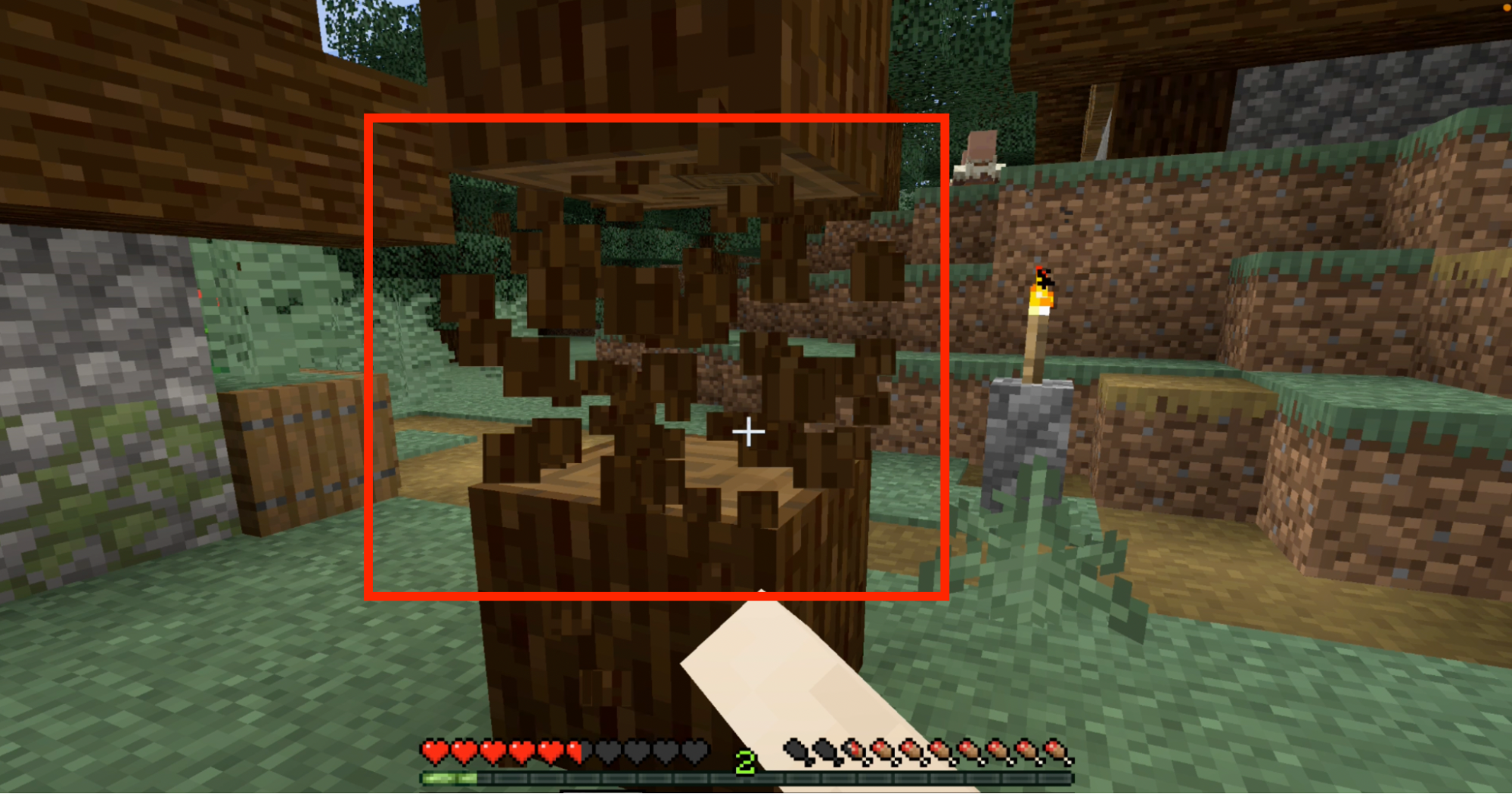
Once you spawn in your new world, it’s time to start gathering resources. You will need to collect wood, stone, and food to survive. To get wood, punch trees until they break into blocks. Then use those blocks to create a crafting table. The crafting table will allow you to make more advanced items.
Step 2: Build a Shelter
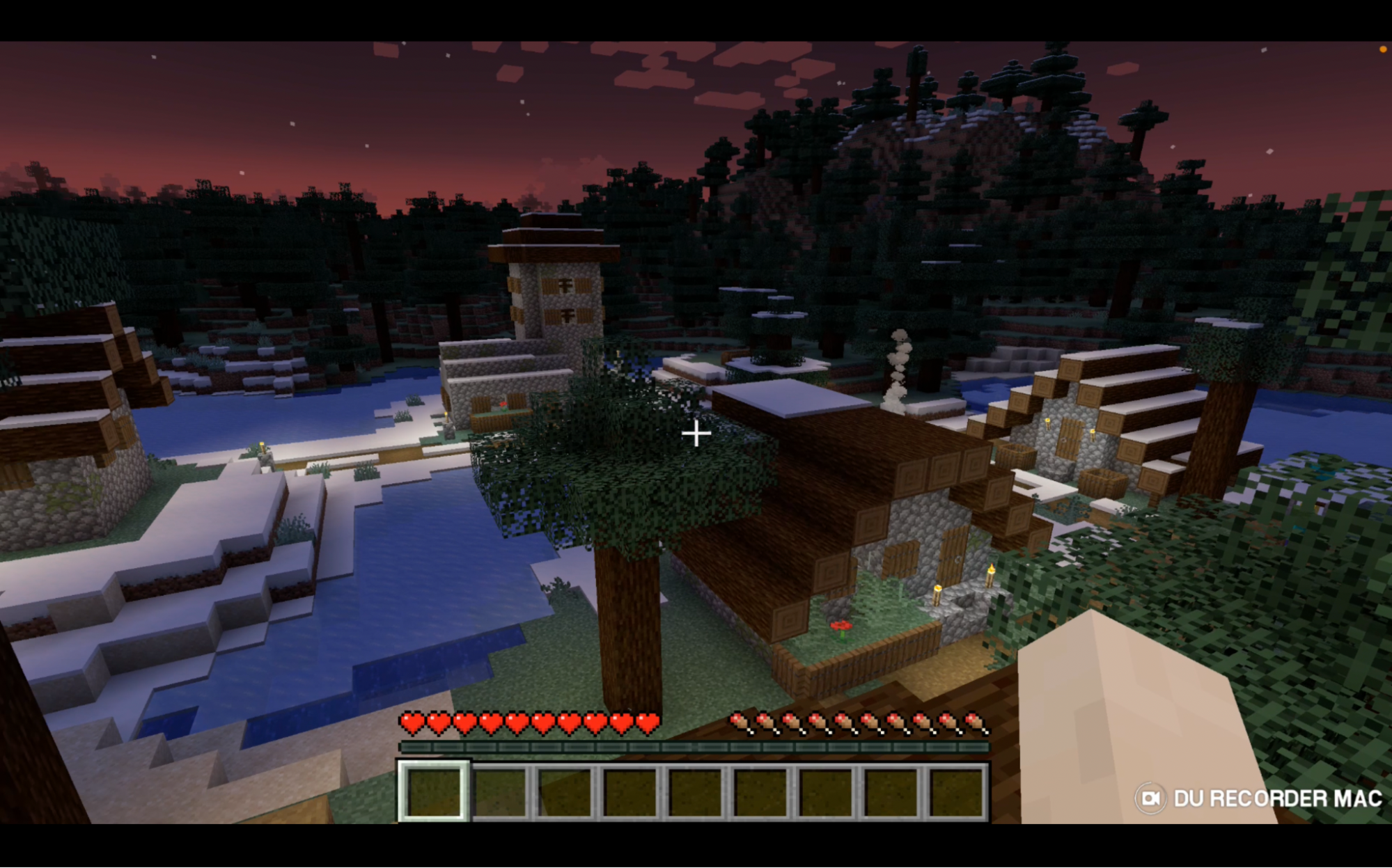
As night falls in Minecraft, dangerous mobs such as zombies and creepers spawn. To protect yourself, you need to build a shelter. You can make a simple dirt house or get creative and build a castle. Just make sure you have enough resources to build and enough light to keep the mobs away.
Step 3: Explore and Mine
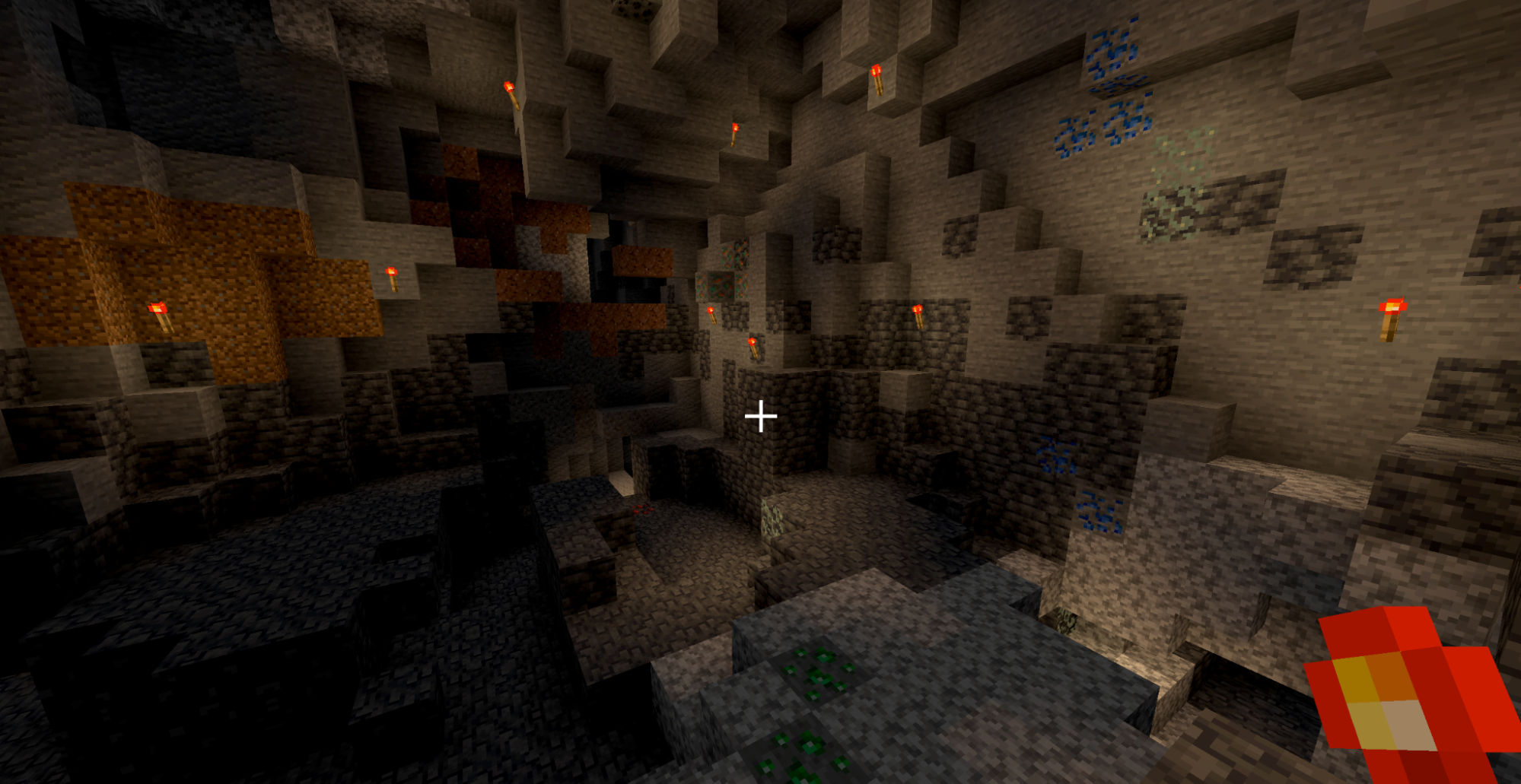
Once you have a shelter, it’s time to start exploring and mining. You can find resources such as coal, iron, and diamonds underground. Use your pickaxe to mine the blocks and collect the resources. Be careful not to fall into lava or get attacked by mobs.
Step 4: Craft and Survive
Now that you have resources, you can start crafting. Use your crafting table to make tools, weapons, and armor. These will help you survive and fend off the mobs. Watch your hunger bar and eat food to keep it full.
If you’re between the ages of 7-16, this is the perfect opportunity to learn some epic skills and simultaneously score a sweet gift card. But remember, you’ve got to hurry because this offer won’t last forever! So, get your parents to sign you up for a trial class ASAP and learn how to make games. Happy crafting!
Moonpreneur is also offering a free $10 Minecraft e-gift card for attending their game development or robotics trial class for kids between the ages 7-16 years.
Minecraft is one of the most popular games among kids, and Moonpreneur is now turning this fun gameplay into an opportunity to learn how to code. Minecraft Coding course will help kids learn the skill of coding the fastest and in the most fun way ever possible! Book a free class today!














How do you join or create multiplayer servers to play with friends in Minecraft?
Download Minecraft server software from the official website.
Set up the server, configure settings, and optionally port forward on your router.Share your public IP address with friends.Start the server and invite friends to connect using your IP and port.Play together in your hosted Minecraft world.
How do you gather resources like wood, stone, and coal when starting a new game?
How do you build structures like houses, farms, or castles in Minecraft?
To build structures in Minecraft, gather materials, open your inventory, select the desired blocks, and place them in the game world using right-click